Crew's Time Cards page lest you view and manage the time cards of your crew members.
Crew's Time Cards
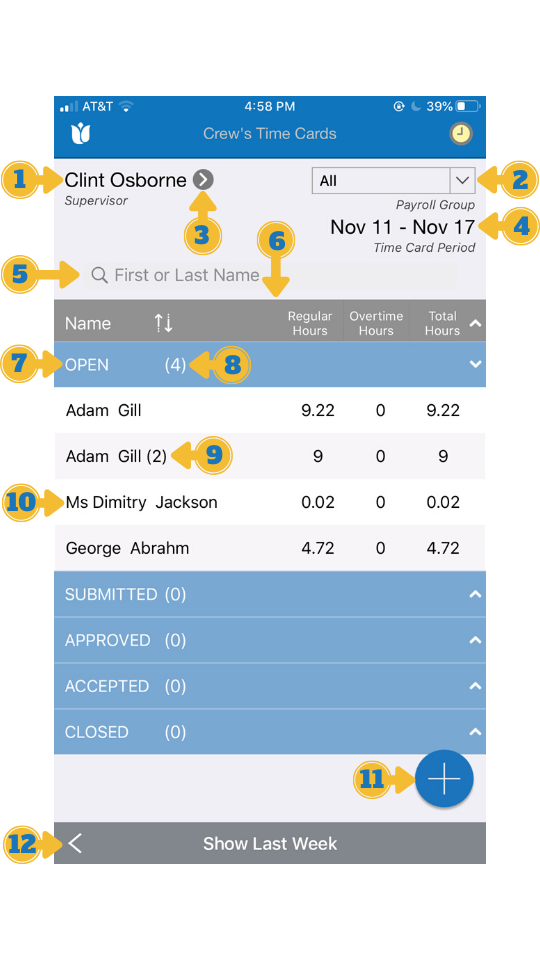
- Supervisor
This shows the name of the supervisor whose time cards are listed below. By default, it shows the name of the user who is signed in to the app. You may change the supervisor by selecting the drop-down icon (item 3) and selecting a supervisor. - Payroll Group
This drop-down is available if you have payroll groups enabled. If available, it allows you to filter the time cards by the payroll group of the employees. - Change Supervisor
Selecting it launches a dropdown list of supervisors. The drop-down only shows the name of the supervisor that the user has privilege over AND has a time card available for the time card period (item 4). The drop-down provides "ALL" as one of the options if you want to list all the time cards the user has the privilege to view. - Time Card Period
It shows the weekly period of the time cards. You may list the time cards for a different period by selecting the left or right arrow or the text at the bottom of the screen (Item 12). - Search Box
A search box to search employees in the list below by their first or last name. - List of Time Cards
The matching list of time cards. The time cards in this list are grouped by their stage. Each group may be expanded or collapsed. - Stage Name
Each group shows the name of the stage. - Number of Time Card in Each Stage
It shows the number of time cards in each stage - Multiple Time CardsWhen an employee has multiple time cards, a number next to the name of the employee is used to shows the multiple time cards.
- List Entry
Each list entry shows the name of the employee and the total number of hours of different types in the time card period. Selecting the entry in the list opens the weekly time card - "+" Button to Add a Time Card
This button is used to add new time cards for an employee in the time card period shown in 4. Selecting it launches a dialogue box to do so. - Navigation Bar
This navigation bar provided methods for changing the time card period. Selecting the left arrow lists the time cards for the earlier period. Selecting the right arrow navigates to the later period. Selecting the text shown in the middle of the bar ("Show Current Week" or "Show Last Week") lists the time cards for the current week of the last week.
Comments
0 comments
Please sign in to leave a comment.