You're Clocked In Screen
You will see this screen if you are already clocked-in and you select (1) "Time Punch" icon from the "Root Menu" or (2) "My Time Punch" tab from the "Time & Attendance" menu.
Form this screen you can (1) change your work activity or (2) clock out.
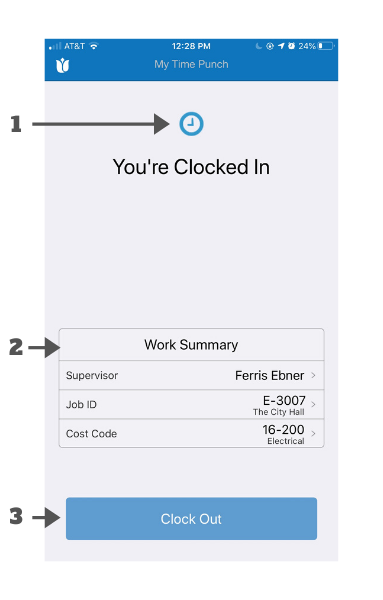
- Clock Icon: This icon indicates that your time punch is in the "Clocked In" state.
- Work Summary: This shows your current work activity. You can change your activity by selecting one of the three tabs.
- Supervisor: Selecting it lets you change your supervisor.
- Job ID: Selecting it lets you change the job.
- Cost Code: Selecting it lets you change the cost code.
- Clock Out Button: This button lets you clock out. Selecting it launches the "Clocking Out" dialogue box (see below).
Change Activity Screen
This dialogue box appears if you change one of the items in "Work Summary" (item 2 above).
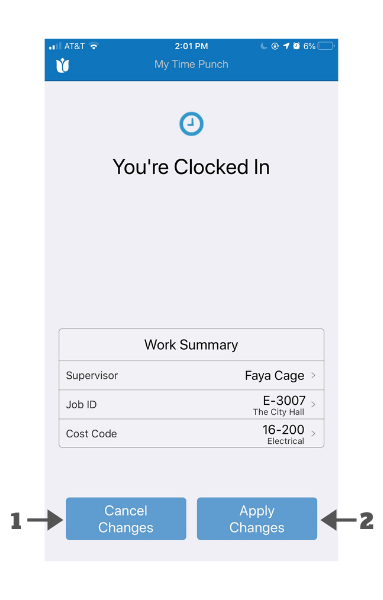
- Cancel Changes: Selecting it cancels the changes you made.
- Apply Changes: Selecting it saves the changes you made.
Clocking Out Dialogue Box
This dialogue box appears when you select the "Clock Out" button on the "You're Clocked In" screen.
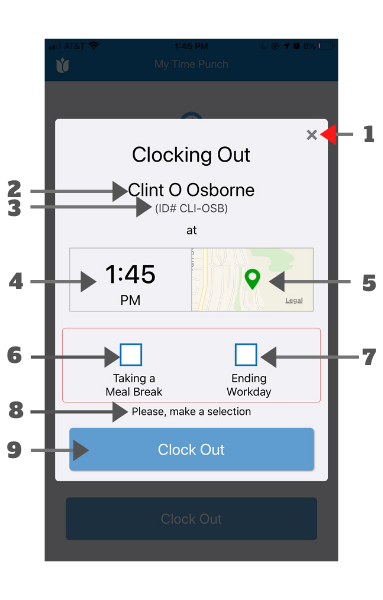
- Close Icon: Selecting this icon lets you cancel clocking out and close this dialogue box.
- Name: Your name, as it appears in the system.
- Employee ID: Your employee ID as it appears in the system.
- Time Stamp: This shows your clock-out time. This continues to update in real-time until you select 9 (clock out)
- GPS Location: Your clock-out location. This may be blank if the location information is not available.
- Meal Break Selection: Select this if you are clocking out for a meal break.
- Ending Workout Selection: Select this you are clocking out to end your workday.
- Selection Message: This message is to remind you that you need to select either 6 or 7 to be able to clock out. If you select 9 (clock out) without selecting either 6 to 7, this message will display in red.
- Clock Out Button: Clicking this button clockes you out. Your clock-out is not registered until you select this button. If you select this button without selecting either 6 or 7, the "No Reason Selected" message box will appear.
Comments
0 comments
Please sign in to leave a comment.