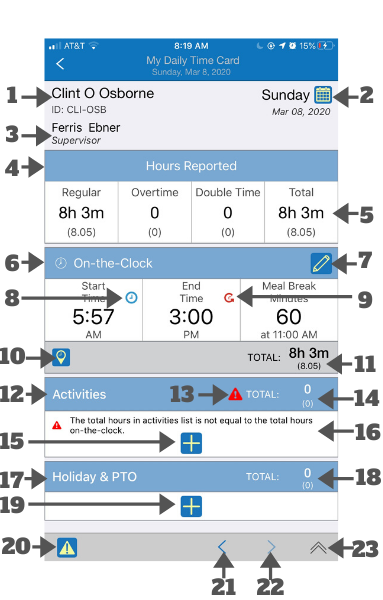
(See below for an additional view of this screen)
- Name and Employee ID: Your name and employee ID.
- Day of the Week: The day of the week of this daily record. You can view the daily record for a different day by clicking the calendar icon and selecting a different day of the week.
- Supervisor: Name of the supervisor for this time card.
- Hours Reported: This shows the hours reported in this daily record. It is calculated by adding the PTO total (18) with the higher of the on-the-clock total (11) and the activity total (14). Hours reported is broken down into Regular, Overtime, Double Time and Total hours.
- Duration Format: The durations like this are shown using both the decimal format and the hours-and-minutes format.
- On-the-Clock: This shows the total on-the clock entires. It includes the start time, the end time, the meal break start time and the meal break duration. These are recorded in real-time if you are using the time punch method. You may also add or edit these entries manually.
- Edit Button: Clicking it launches an interface for editing on-the-clock entries. This button is available only if editing is permitted.
- Clock Icon: The clock icon indicates that the entry was recorded using the time punch method.
- Rolled-back Clock Icon: Rolled-back clock icon indicates that the entry was originally recorded using the time punch method but has since been edited.
- Location Button: Clicking it launches an interface that shows the location of the time punch entries.
- Total On-the-Clock: The total hours on-the-clock. It is calculated as the difference between the End Time the Start Time, less meal the Meal Break Duration.
- Activities List: List all the activities. These entries in this list may be recorded in real-time using the time punch method or by editing the entires.
- Total Mismatch Alert: This alert symbol appears if Total Activities Duration (14) is not the same as Total On-the-Clock (11). This alert symbol appears only if this alerting feature is enabled.
- Total Activities Durations: The total of all the activity entries.
- Add Activities: Clicking this button launches an interface that allows you to add a new entry in the list.
- Alert Description: Messages like this may appear to describe the alert symbol.
- Holiday & PTO List: List of holiday and PTO entry. This appears only if Holiday and PTO are enabled.
- Total Holiday & PTO Hours: The total of Holiday & PTO entries.
- Add Holiday & PTO: Clicking this button launches an interface that allows you to add a new entry in the list.
- Alert Detail: This button appears when the daily record has an alert. Clicking it lists the description of all the alerts.
- The Previous Day: Clicking it shows the daily record of the previous day. It is grayed out when showing the daily time card for the first day of the week.
- The Next Day: Clicking it shows the daily record of the next day. It is grayed out when showing the daily time card for the last day of the week.
- Expand Toolbar: Clicking this expands the toolbar (see below).
Additional View
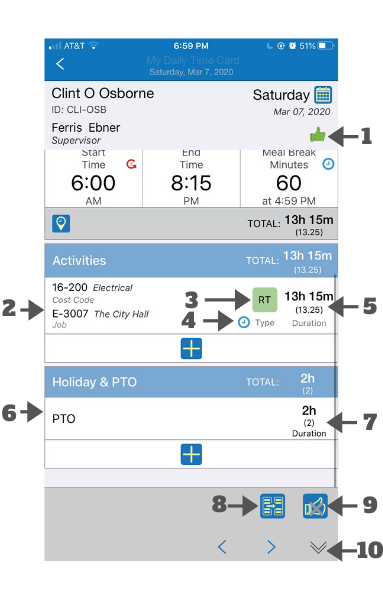
- Marked as Review: A user may mark a daily record as "Reviewed". This icon indicates if this daily record has been marked as "Reviewed".
- Activity Entry: An entry in the activity list. Clicking the entry allows you to edit it. Swiping it to the left allows you to delete it. An entry added automatically each time you use the time punch method to clock in or change activity. An entry may also be added manually (see above). Each entry shows the job ID and the cost code along with their descriptions (if available).
- Hour Type: Shows whether the activity is Regular Time (RT), Overtime (OT) or Double Time (DT). For activities that are added automatically, the hour types are labeled as RT by default but can be changed by editing the entry.
- Punch Method Icon: The clock icon indicates that the entry was recorded using the time punch method.
- Activity Duration: The duration of the activity.
- PTO Entry: An entry in the activity list. Clicking the entry allows you to edit it. Swiping it to the left allows you to delete it.
- PTO Duration: The duration of the activity.
- Move to Another Time Card: Clicking this button lets you (if allows) move this daily record to another time card.
- Mark or Unmark as Reviewed: Clicking this button lets you (if allowed) mark this time card as "Reviewed" (or remove such mark if it is already marked as "Reviewed"
- Collapse Toolbar: Clicking this button collapses the toolbar.
Comments
0 comments
Please sign in to leave a comment.