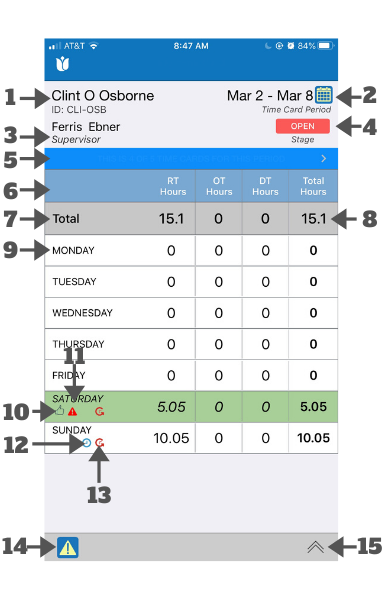
This screen shows your time card for the time card period selected. This shows the most common view of this screen. See the next image below for its alternate views.
(See below for the other elements on this screen)
- Name and Employee ID: Shows your name and employee ID.
- Time Card Period: Shows the time card period of the currently selected time card. You can change the period by clicking on the calendar icon.
- Supervisor: The supervisor for this time card.
- Stage: The current stage of the time card.
- Banner: This pulsating banner indicates if you have more than one time card for the selected time card period. It does not appear if you have only one time card for the selected time card period.
- Weekly Table: The table showing your work duration for each day of the week. It has four columns:
- RT Hours: Regular time hours.
- OT Hours: Overtime hours.
- DT Hours: Double time hours.
- Total Hours: Total hours.
- Week's Total: The first row shows the total hours for the week.
- Duration Format: The duration format can either be decimal hours (as shown here) or hours and minutes (see below) based on your preference as selected in your setting (see Settings).
- Daily Entry: Each row shows the total hours for each day of the week. Selecting the row opens My Daily Time Card that shows the detail for the day.
- Marked as Reviewed: This symbol indicates that the daily record has been marked as "Reviewed". When marked as "Reviewed", the background color of the entry changes to green.
- Alert Symbol: An alert symbol indicates. if the daily entry has a discrepancy.
- Clock Symbol: A clock symbol indicates if this day's entry was recorded using the time card punch method.
- Rolled-back Clock Symbol: A rolled-back clock symbol indicates if this day's entry was recorded using the time card punch method but was later edited manually.
- Alert Button: This button appears if the time card has at least one daily record with a discrepancy (item 10). Clicking this button shows a message about the discrepancy.
- Toolbar Expansion Icon: The toolbar at the bottom of the screen where the button appears is shown in collapsed mode by default. Selecting this icon expands the toolbar (see below).
Additional View
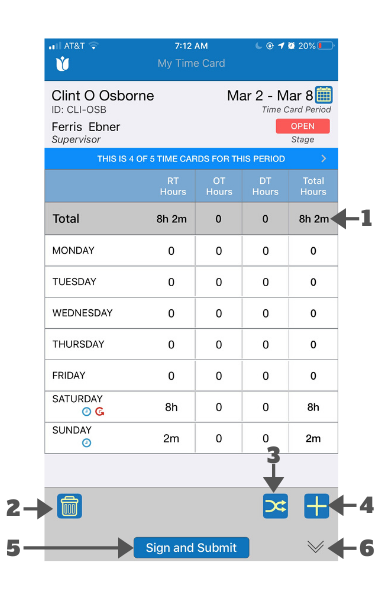
- Duration Format: The duration format can either be hours and minutes (as shown here) or decimal hours (see above) based on your preference as selected in your setting (see Settings).
- Delete or Void Button: Selecting this button allows you to delete or void your time card. It is grayed out and inactive if deleting or voiding is not permitted.
- Change Supervisor Button: Selecting this button allows you to change the supervisor of this time card. It is grayed out if changing the supervisor is not permitted.
- Add New Time Card: Selecting this button allows you to add a new time card for this time card period.
- Primary Action Button: Selecting this button allows you to perform the action as stated in the button. This button may or may not appear depending on the state and condition of the time card. When available, this button appears even when the toolbar is collapsed.
- Sign and Submit: When the time card is in the OPEN stage, selecting this button allows you to sign and submit the time card.
- View PDF: When the time card is in the ACCEPTED or CLOSED stage, selecting this button allows you to view the PDF copy of the time card.
- Toolbar Collapse Icon: The toolbar at the bottom of the screen where the buttons appear is shown in expanded mode. Selecting this icon collapses the toolbar (see above).
Comments
0 comments
Please sign in to leave a comment.