ZurelSoft provides several methods for you to get help.
- Access online help documents
You can find online help documents at the following sites: - Access in-app help documents
Zurel Pro and Zurel.app users can also access the help documents from within the app.
- Create support tickets
Zurel Pro and Zurel.app users can also create support tickets from within the apps. Once you create a support ticket, we will reach out to you by e-mail.
Accessing in-app help documents for Zurel Pro and Zurel.app users
Zurel Pro and Zurel.app users can access the help documents from within the app.
In-app help document Zurel Pro users
- Select the "Zurel" icon (A) on the top-left corner of the Visitor's Log Dashboard page.
- Select "Support" (B) to open the "Help" page

The help page lists all the help documents available. The documents are grouped in sections (A) and categories (B). You can also search for the document by typing keywords in the search box (E).

In-app help documents Zurel.app users
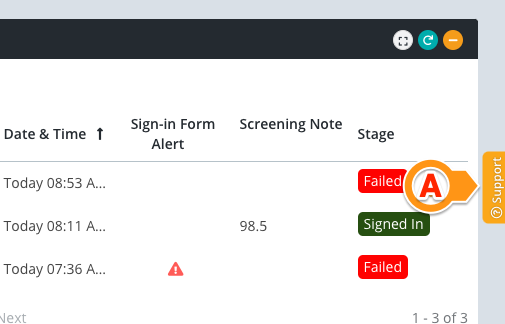
- Click the orange "Support" tab (A) on the right edge of the web page
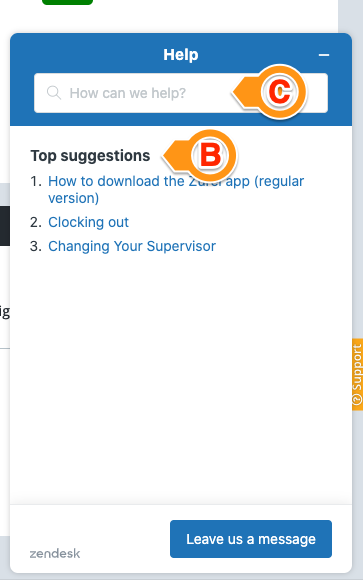
- A small pop-up window labeled "Help" appears with its top suggestions (B). Use the search box (C) to look for relevant help documents.
Creating support tickets
Zurel Pro and Zurel.app users can create support tickets from within the apps. Once you create a trouble ticket, we will reach out to you by e-mail.
Creating support tickets from the Zurel Pro app
- Select the "Zurel" icon (A) on the top-left corner of the Visitor's Log Dashboard page.
- Select "Support" (B) to open the "Help" page
- Select the "Edit" (C) icon to open the "Contact us" page to compose your message.
- Type the issue in the "Description" area (D)
- If you have any screenshot or phots to attach, click the attachment icon (E) to attach them.
- Once done, click the "Send" button (F) to submit and create a support ticket.


Creating support tickets from Zurel.app
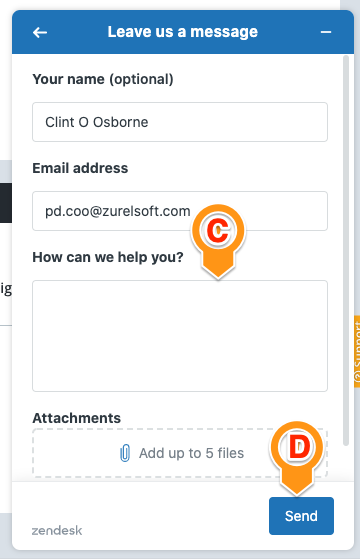
- Click the orange "Support" tab (A) on the right edge of the web page
- A small pop-up window labeled "Help" appears. Click the Leave us a message button (B) to compose your message.
- Your name and email address are automatically filled. In the text area (C), type the description of the issue.
- Attach documents, if any.
- Click Send (D) to submit and create a support ticket.

Comments
0 comments
Please sign in to leave a comment.