If your safety procedure at a job site requires you to perform in-person screening by a site personnel, you can enable the screening feature for the site to help you facilitate your screening process. The screening feature is enabled on a per-site basis. This article describes how you may use the screening feature.
Visitor's Digital Badge
Once a visitor submits the sign-in questionnaire (COVID-19 questionnaire), the visitor's digital badge displays a large blue label with a "Screening" (A) on it and a brief instruction below it (B).

Step 1. Zurel Pro Site page
Open your site page. If a visitor is in the Screening status, the Site page on the Zurel Pro app indicates so with a Screening label (A). Click anywhere on the row (B) to open a popup with the visitor's info.

Step 2. Visitor's Info
Visitor's Info also indicates the visitor's status with a Screening label (A).
- Add a comment in the screening comment box (B). Although a comment is not required, it is desirable.
- Select either Fail or Pass (B) based on the screening outcome. If Fail is selected, the visitor's status changes to Failed. If Pass is selected, the visitor's status changes to Signed In.
Notes:
- Once either Fail or Pass is selected, the info box closes, and the Site page updates with the updated status of the visitor.
- If you do not have the proper role, once Fail is selected, you may no longer be able to see the visitor listed on your Site page.
- Once the status changes from Screening to either Signed In or Failed, the screening comment is no longer available to be viewed on the Zurel Pro. It only becomes available to authorized users on the Zurel.app (see Step 4)
Step 3. Ask the visitor to refresh the digital badge
Even though the visitor's status changes in Step 2, the visitor's badge does not update automatically to indicate the new status. Ask your visitor to click the Refresh button (A) located at the bottom of the visitor's badge page to update it with the latest status and instruction.

Step 4. Review screening comments on Zurel.app
Screening comments, once submitted, cannot be viewed on the Zurel Pro app. However, they can be viewed by authorized users on Zurel.app.
Visitors Log Dashboard on Zurel.app
On Visitor's Log Dashboard of Zurel.app, a column called Screening Note (A) is available to users that have either Admin, Visitors Log Manager, or Site Manager role. The screening comments, when available, are listed in the column. 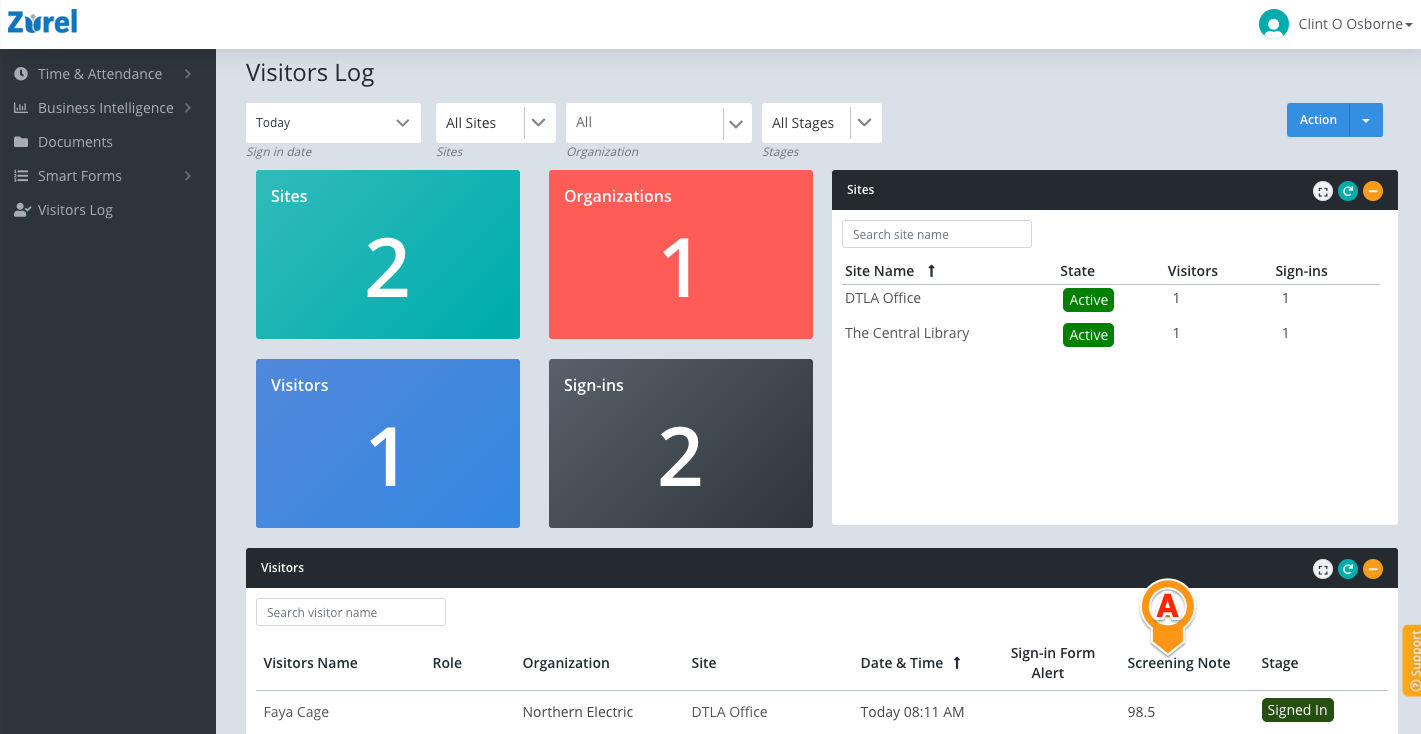
A mouse hover over the comment shows a tooltip (B) with the entire comment, the name of the Zurel Pro user who added the comment, and the data and time of the comment.

COVID-19 SmartForm Dashboard on Zurel.app
COVID-19 SmartForm dashboard on Zurel.app includes a column called Screening Note (A). The column lists the screening comments. A mouse hover over the comment shows a tooltip (B) with the entire comment, the name of the Zurel Pro user who added the comment, and the data and time of the comment.

Comments
0 comments
Please sign in to leave a comment.